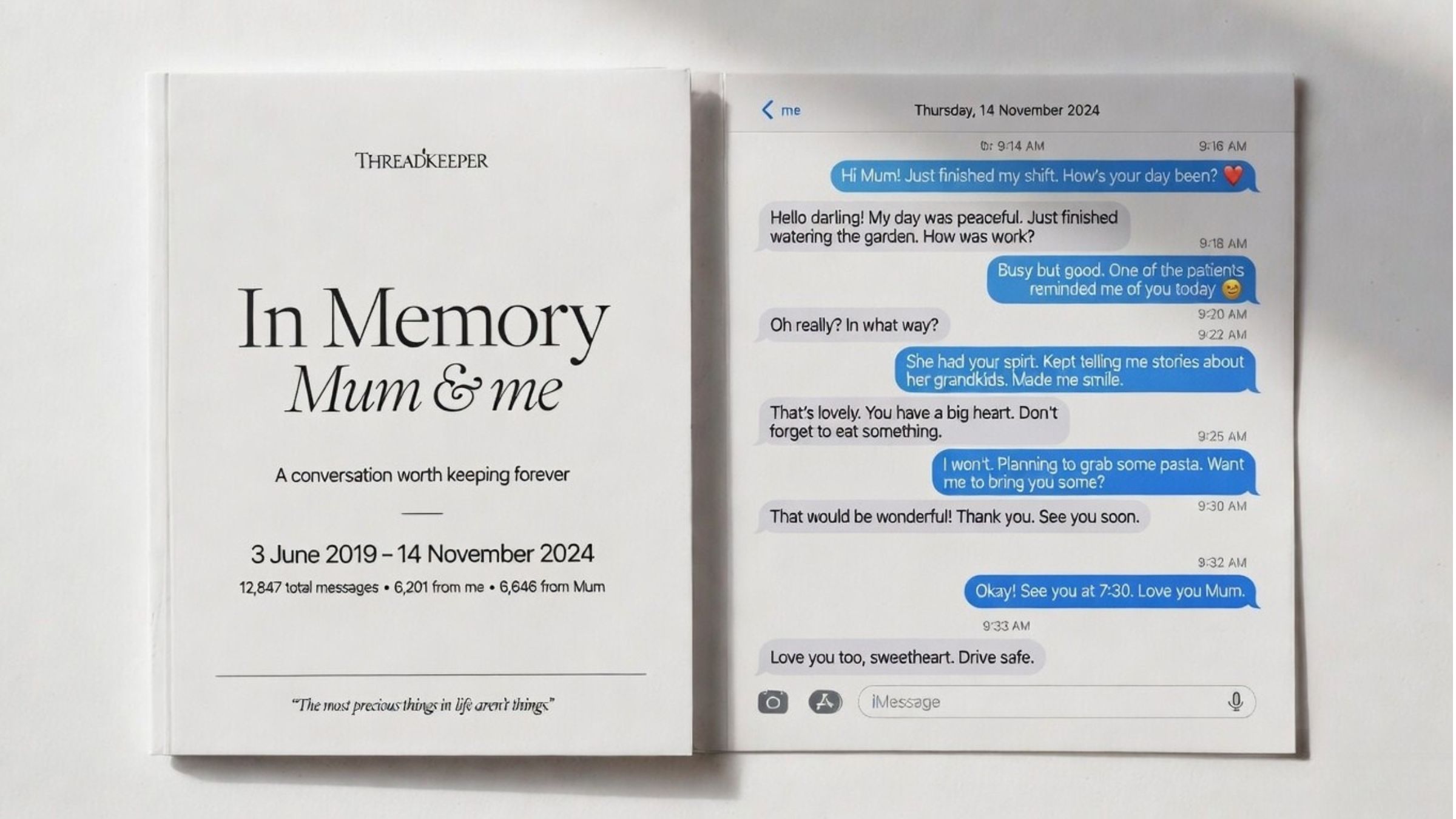
Most people need to print texts for one of a few reasons: a keepsake of someone they love, a record for a dispute or court, or a copy before they change phones. Which method you should use depends on how many messages you need and whether a Mac is involved.
Method 1: screenshots (a few messages, no computer)
- Open the conversation in Messages and scroll to the part you need.
- Take a screenshot. On a Face ID iPhone, press the side button and volume up together. On an iPhone with a Home button, press the side button and Home button.
- Scroll and repeat until you have every message you need, overlapping each screenshot a little so nothing is missed.
- Open Photos, select the screenshots, tap Share, then tap Print and choose an AirPrint printer.
Screenshots are free and fast, but they get unwieldy past a few screens, and they only show the times that happen to be on screen.
Method 2: the Messages app on a Mac (free, whole thread)
If your iPhone messages also appear on your Mac, open the conversation in Messages and choose File > Print. You can print it, or click the PDF menu to save a copy. Apple's guide to printing documents on your Mac covers the print dialog and saving as PDF. Your Mac only shows what has synced, so scroll up first if you need older messages.
Method 3: export the conversation to PDF with Threadkeeper
For a long iMessage conversation, or one you want to keep, Threadkeeper turns it into a formatted PDF on your Mac that you can print at home or at a print shop.
- Install Threadkeeper on a Mac running macOS 13 Ventura or later, and grant Full Disk Access when it asks. This lets it read your Messages database.
- Choose a source. Pick Mac Messages if the conversation is on your Mac, or an iPhone backup you made to the Mac in Finder if it only exists on your phone. Encrypted backups can't be read.
- Pick the contact and set a date range. You can include photos at full or reduced quality, leave them out, or filter by a keyword.
- Export the PDF, then open it and print. Each message keeps its date and time.
Everything happens on your Mac. Your messages are not uploaded anywhere, unless you choose to turn on the optional AI summary, which sends a small sample to create it. The user manual walks through every screen.
Which method should you use?
- A few messages, quickly: screenshots.
- A whole thread, no extra cost: Messages on Mac, File > Print.
- A keepsake, a long history, or a dated record: Threadkeeper. People use it for a relationship keepsake, a timestamped record for legal use, or a backup before switching to Android.
If you want to export the conversation to PDF rather than print it, see our guide to how to export iMessages to PDF.
Frequently asked questions
Can I print text messages straight from my iPhone?
Not a whole conversation. The Messages app on iPhone has no print button, so on the phone itself the only built-in option is to take screenshots and print them from the Photos app.
Does Threadkeeper work on Windows or iPhone?
No. Threadkeeper is a Mac app and needs macOS 13 Ventura or later. The PDFs it creates open on any device, including Windows and Android.
Can Threadkeeper print group chats or SMS?
Not at the moment. Version 1.9 exports one-to-one iMessage conversations. SMS-only and Android messages are not supported, and group chats are not included in this version.
Will printed texts show the date and time?
Screenshots only show the times that happen to be on screen. A Threadkeeper PDF keeps the date and time of every message, and the cover shows the date range you exported.